
Where can I find the Serial Number of AirGradient ONE?
The method depends on whether you have a fully assembled unit or a DIY kit.
Fully Assembled Devices
For fully assembled units, it’s simple:
- The serial number (SN) is printed on the back of the device
- The model name (e.g. ONE, Open Air) is also indicated there

DIY Kits
Since DIY kits are assembled by you, the serial number is not printed on a case. There are a few ways to find it:
Method 1: On the device display
If the device is not connected to WiFi, the serial number will be part of the WiFi hotspot name shown on the display on startup:
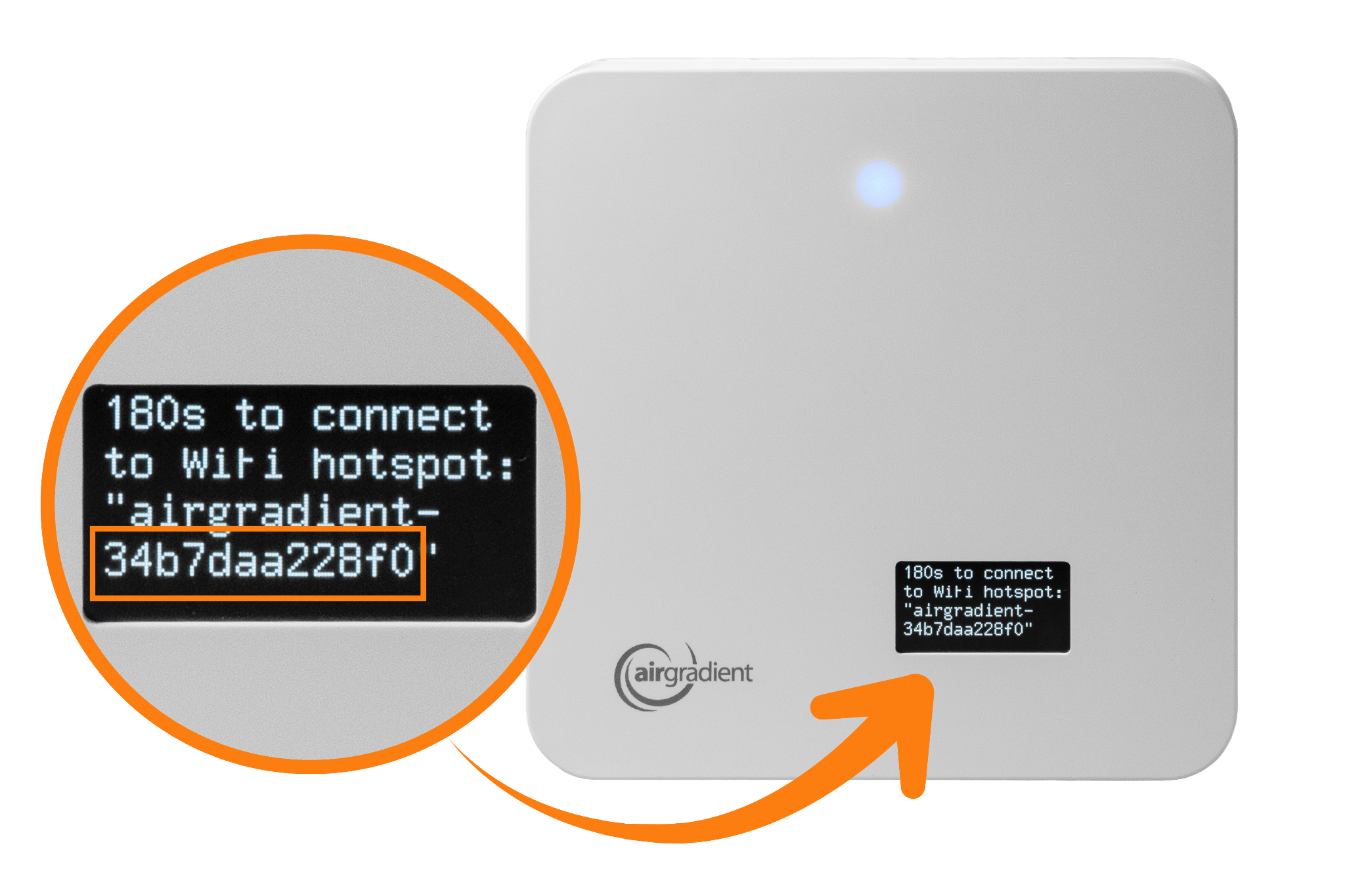
The format it is displayed in is:
airgradient-<yourserialnumber>
- The serial number appears after
airgradient-
If your device is already connected to WiFi
- Reboot the device
- Wait for startup
- The serial number will briefly appear on the screen
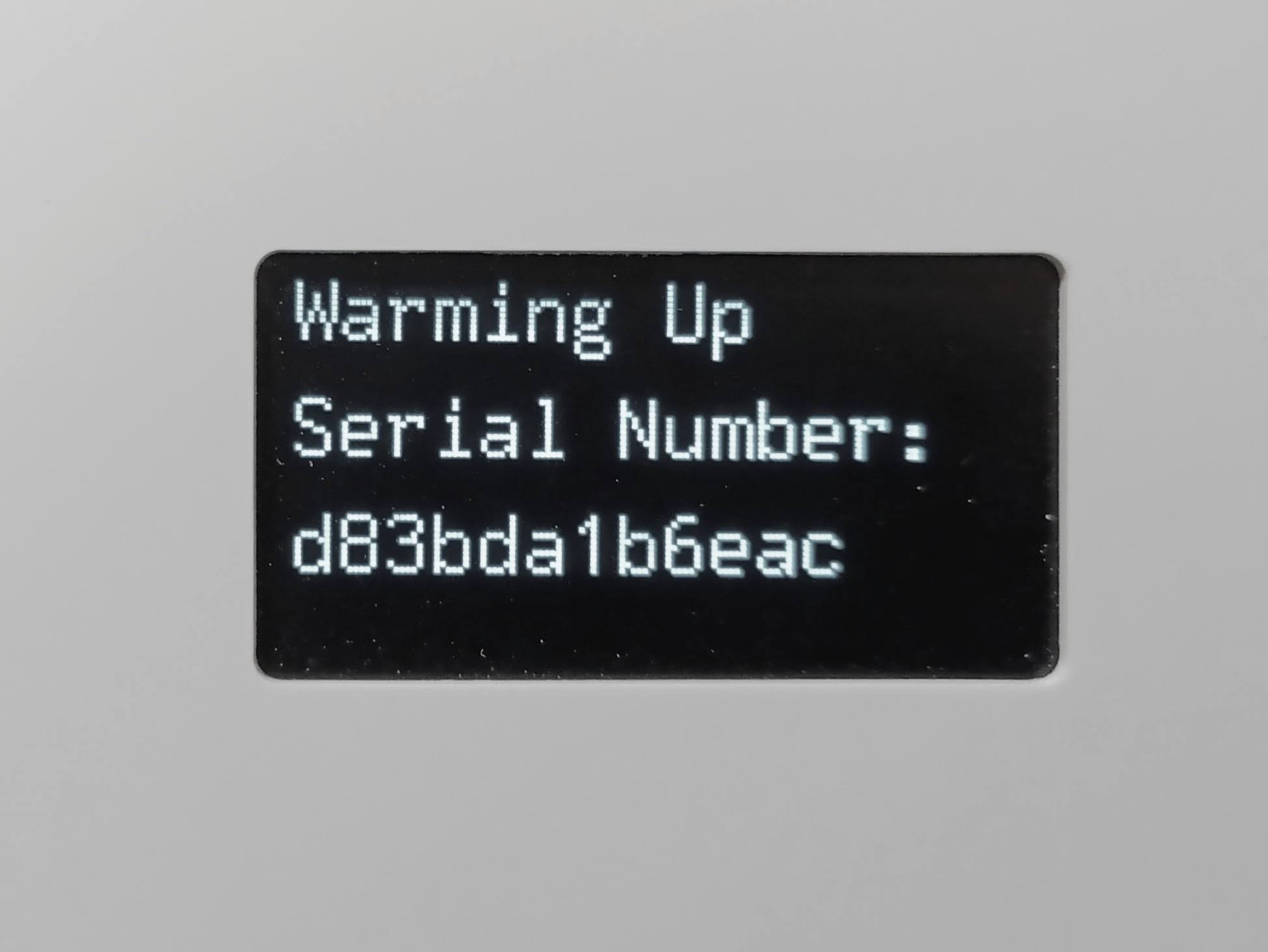
Tip: Use your phone camera to capture the SN quickly.
Method 2: Via Wi-Fi hotspot
- Reset the WiFi credentials on your ONE: https://www.airgradient.com/documentation/kb/one-resetting-wifi
- Open the Wi-Fi settings on your phone or computer.
-
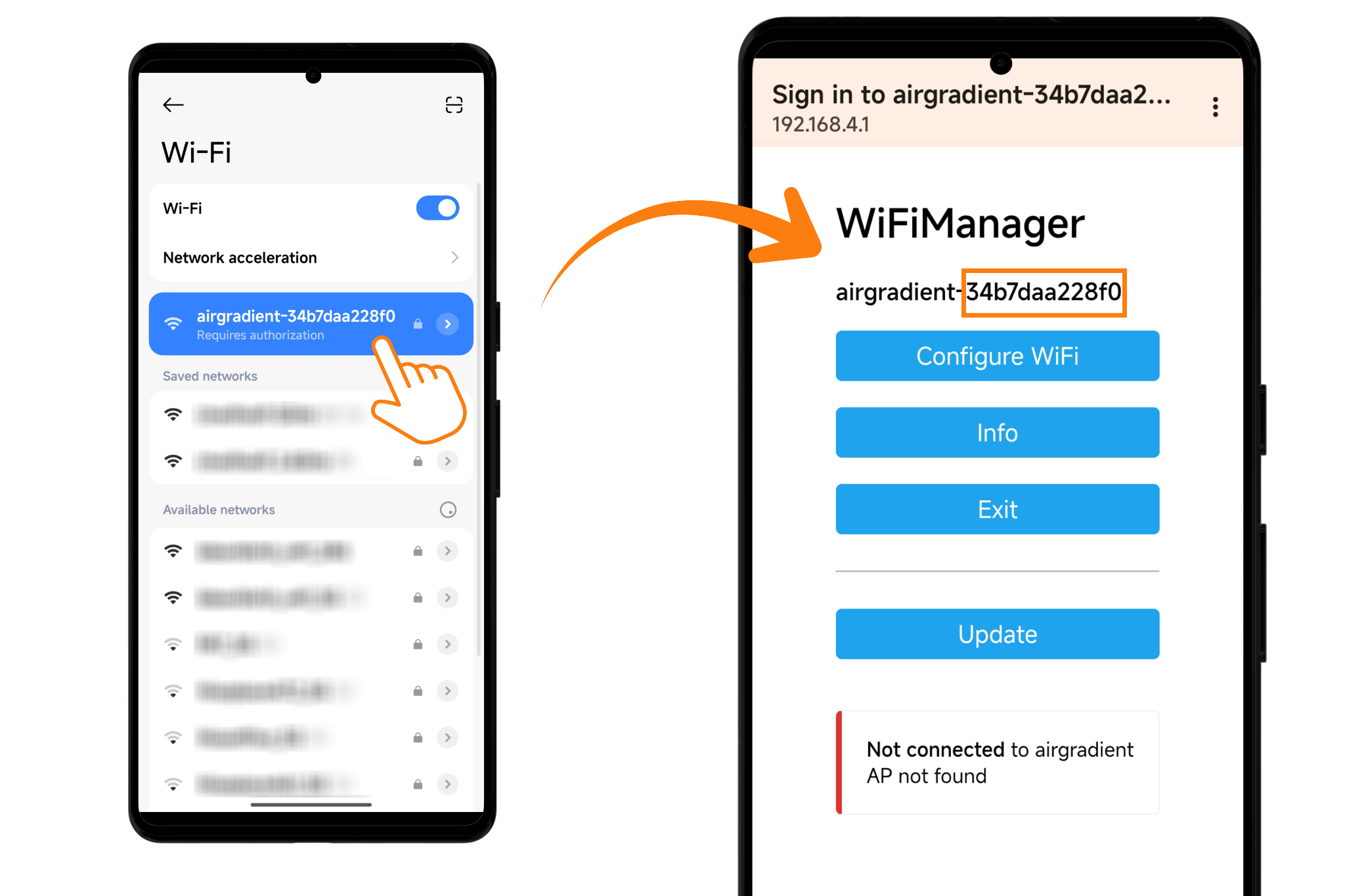
Look for a network named:
airgradient-<yourserialnumber> - The serial number appears after
airgradient-. On some phones, the SN may be truncated due to display size limitations, in that case, continue following the steps below. - Connect to this Wi-Fi network, password: cleanair
- Once connected, either:
- Wait for the Wi-Fi portal to open automatically, or
- Manually go to
192.168.4.1in your browser
- The full serial number will be displayed in the portal.
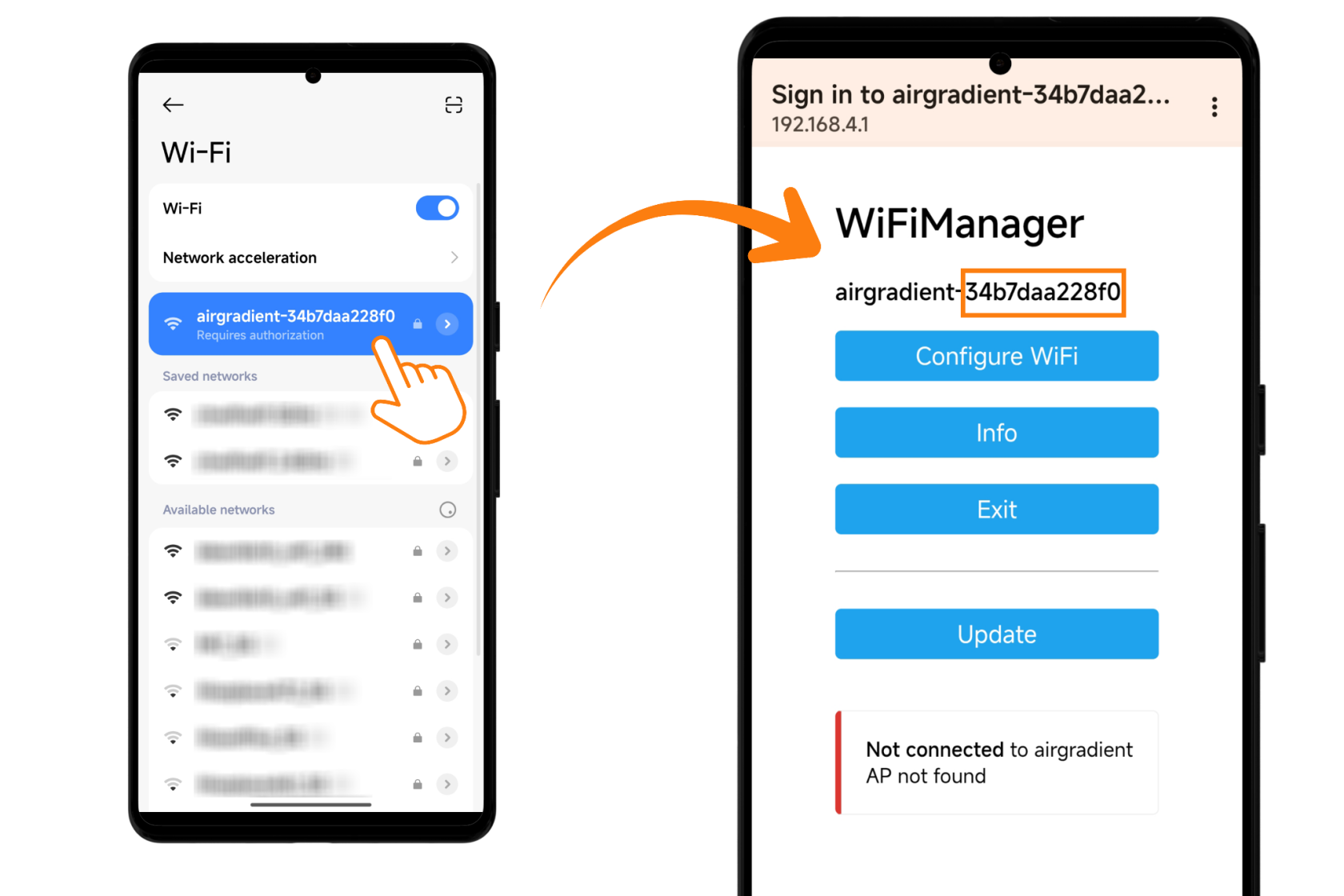
- Note it down.
Method 3: Via Device Logs
- Connect your AirGradient Open Air to your computer using a USB cable.
- Open Google Chrome or Microsoft Edge (or any Chromium based browser)
-
Go to:
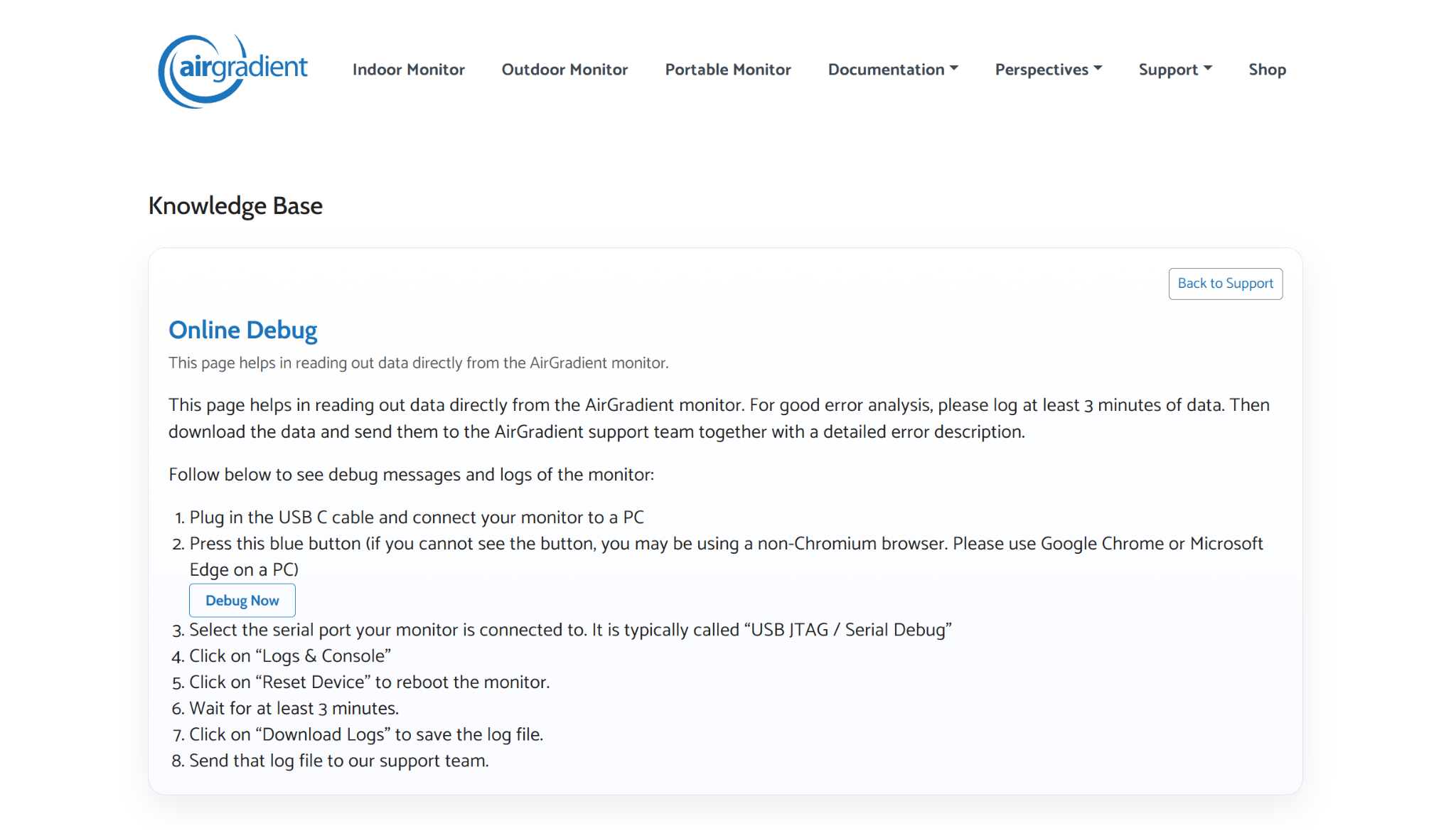
https://www.airgradient.com/documentation/kb/kb-diy-online-debug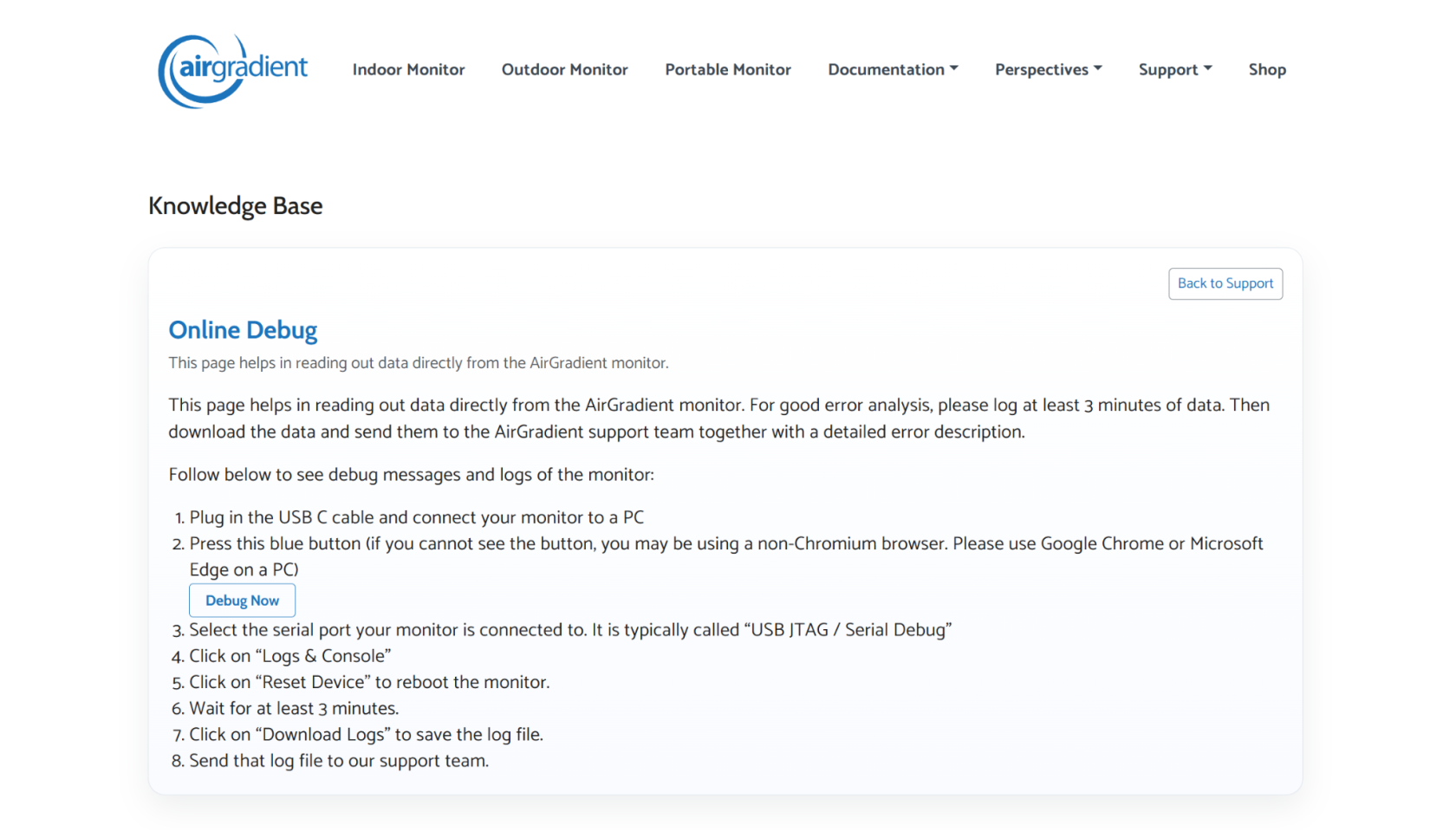
- Click the “Debug Now” button.
- In the pop-up window:
- Select the device labeled “USB JTAG/Serial debug unit…”
- Click “Connect”
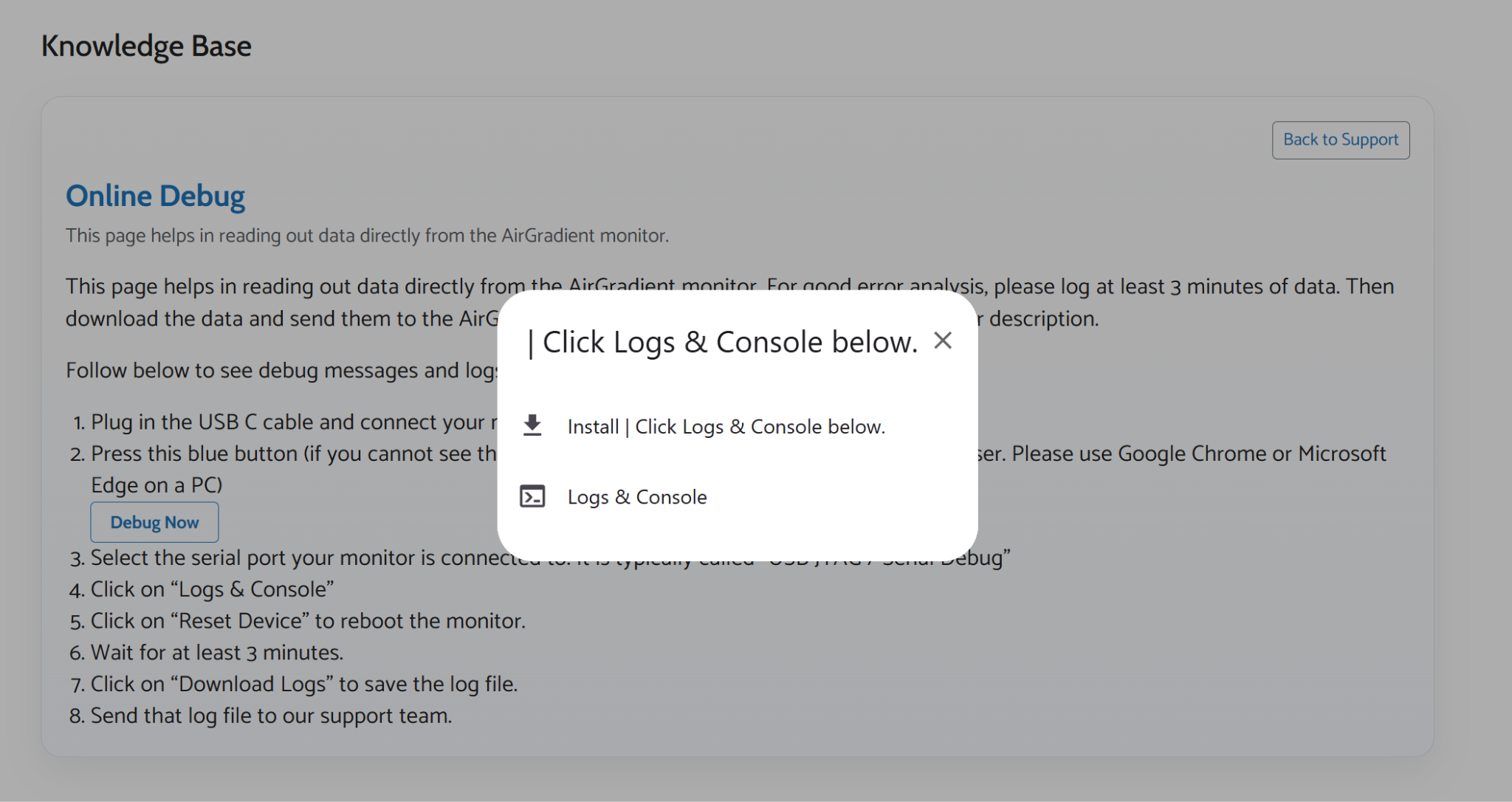
- When prompted, select “Logs & Console”
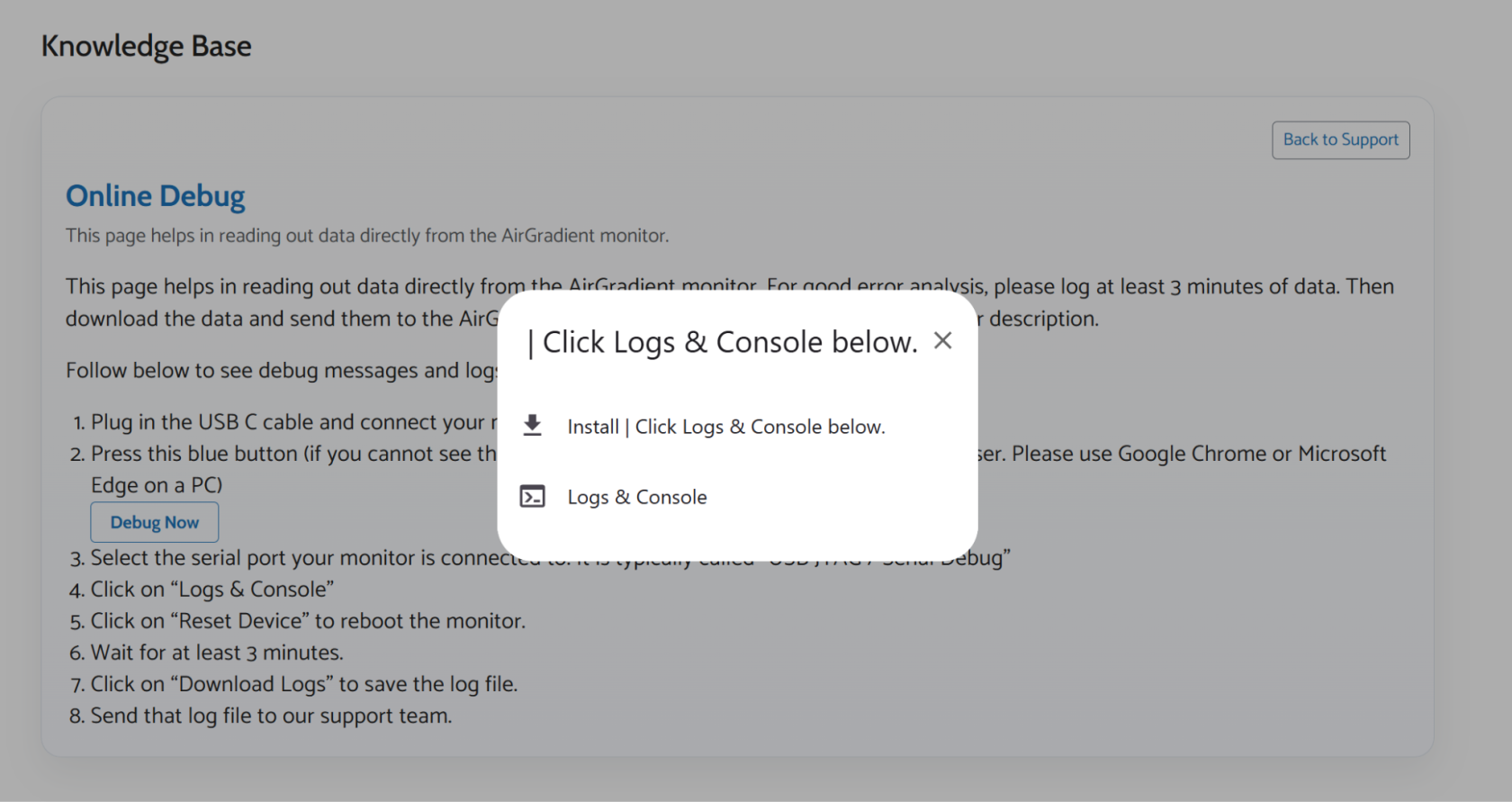
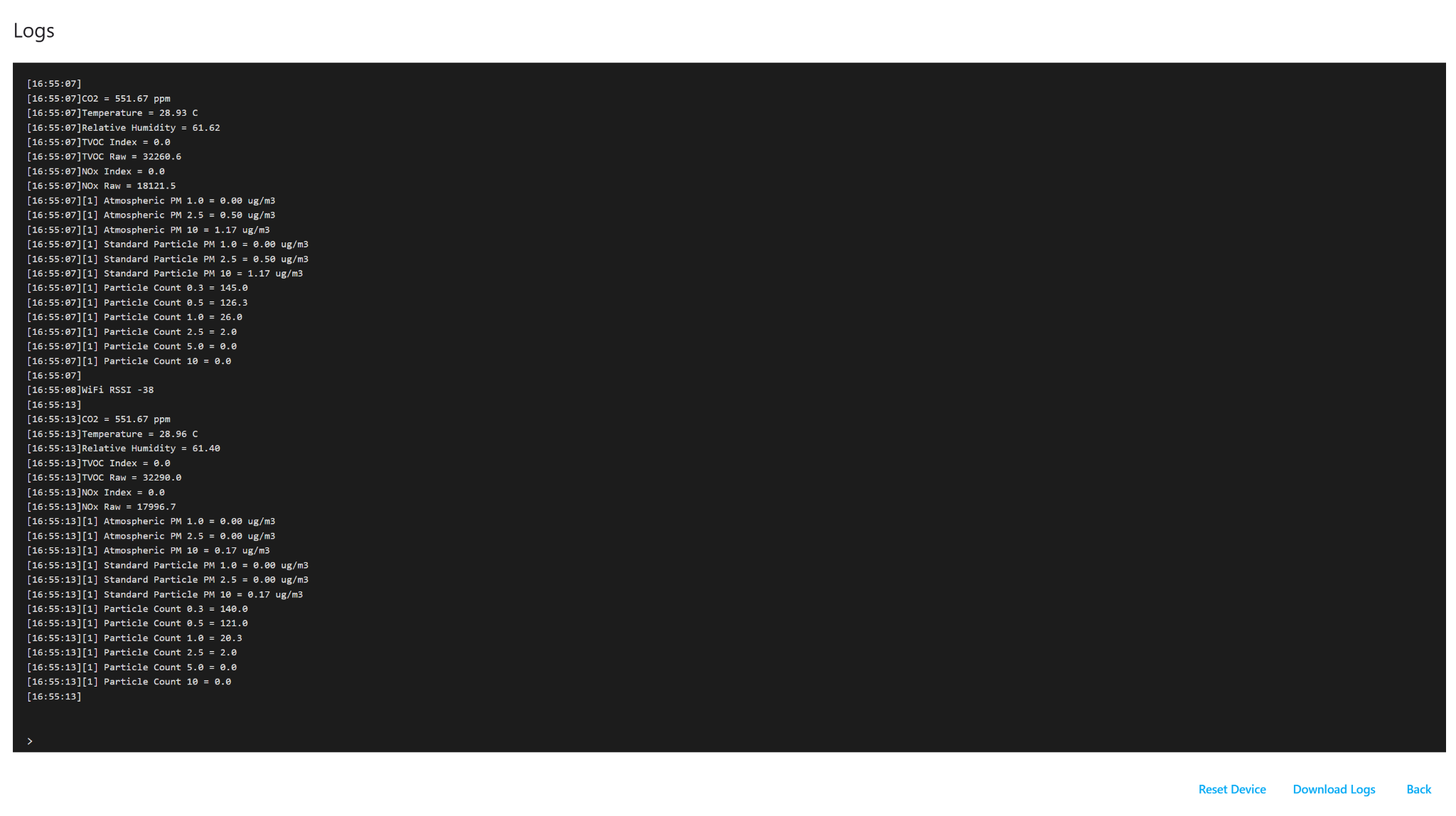
- A log window (black background) will appear.
- Click the “Reset Device” button at the bottom right.
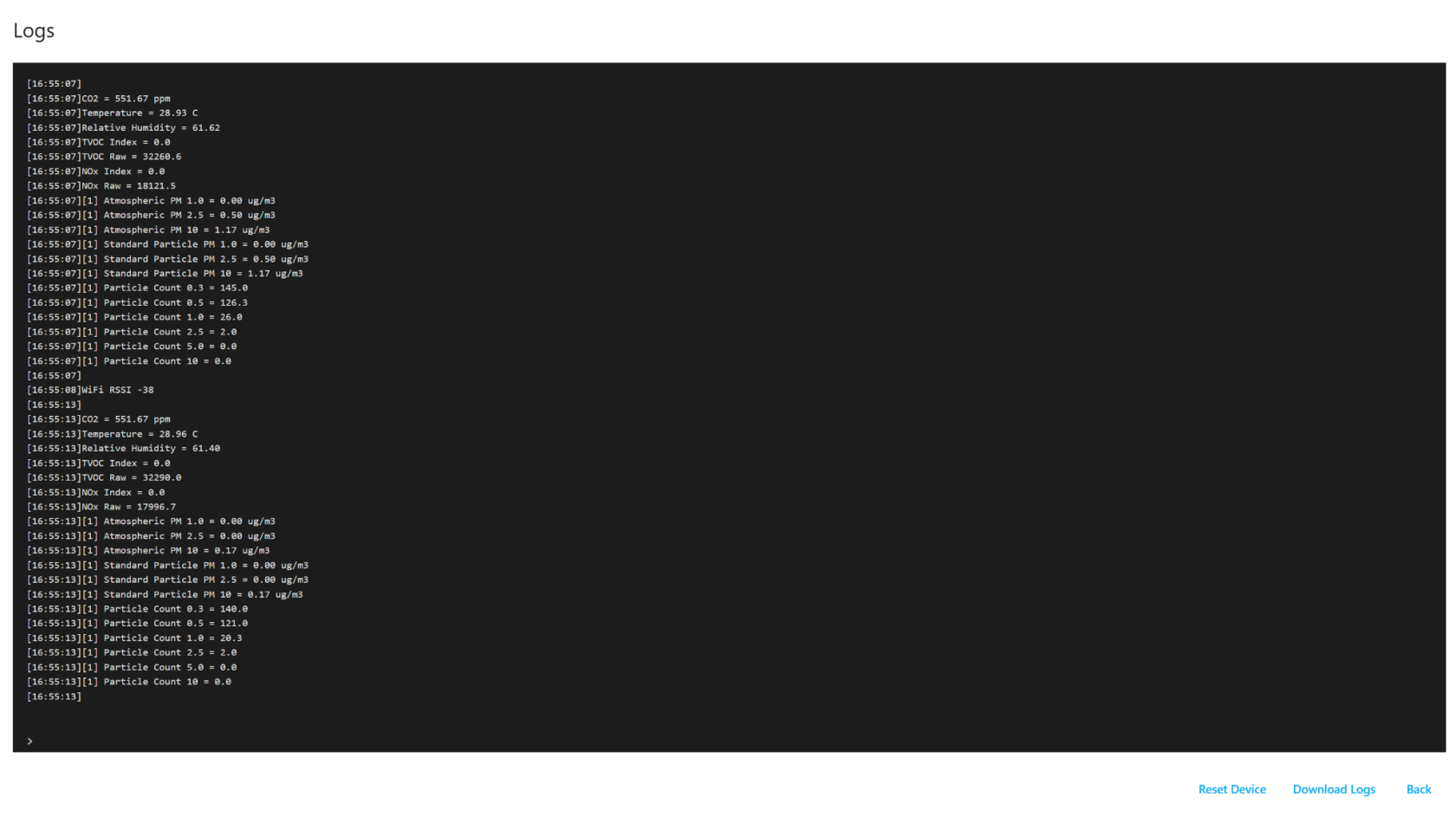
- The device will reboot, and logs will start appearing.
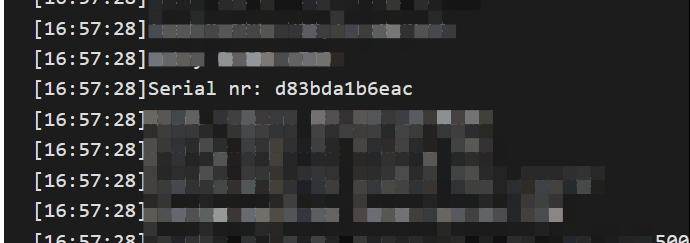
- Look for the line containing:
-
Serial nr:
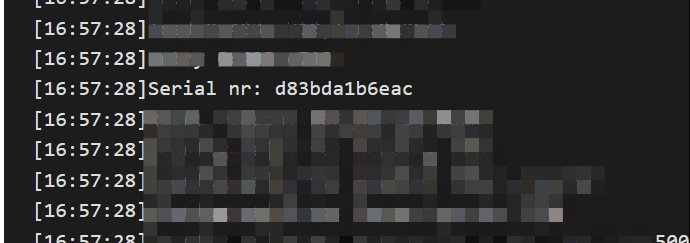
- The value shown after this is your device’s serial number.
-
- You can use Ctrl + F to quickly find it.
-
- Note it down.
No comments to display
No comments to display