
My monitor is connected to Wi-Fi but appears offline in the Dashboard
This usually comes down to one of three things: the device isn’t actually online, the serial number is wrong, or the network is blocking it. Go through these in order.
1) Confirm the device is actually connected to the internet
For AirGradient ONE (indoor)
- The OLED display should show live readings (PM2.5, CO2, etc.)
- You won't see one these LED indicators in the top left corner:
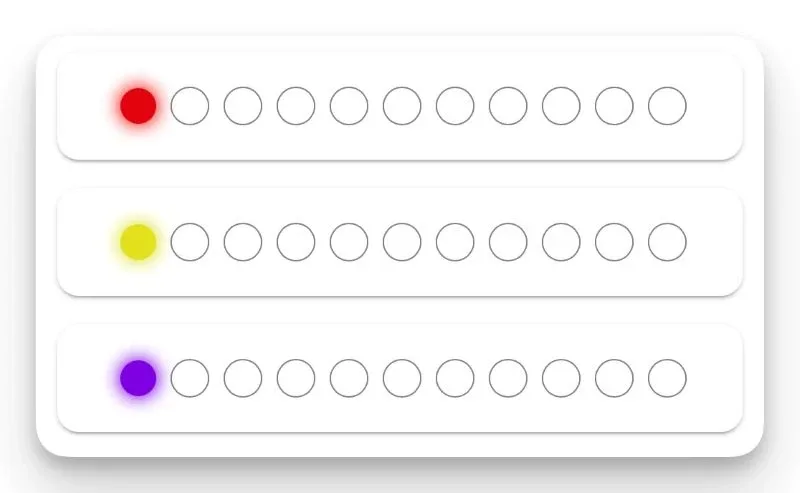
Red: Connection to WI-FI network failed. This may be due to incorrect credentials or unsupported encryption.
Yellow: Connected to WI-FI network but the server can not be reached through the Internet, e.g. blocked by firewall.
Purple: Server is reachable but there is some configuration issue to be fixed on the server side.
For AirGradient Open Air (outdoor)
- If WiFi connection was successful, the LED should be OFF.
If the LED is blinking, it is likely showing one of the statuses on this page: What does each LED indication on the AirGradient Open Air indicate?
If the device is powered but not showing readings or LEDs don’t match the above, this is not a dashboard issue, it’s a connectivity/setup issue. Please visit the following pages to correctly setup the WiFi connection for your monitor:
Connecting Your AirGradient Open Air to WiFi
Connecting Your AirGradient ONE to WiFi
2) Check the Serial Number (SN)
If the serial number is wrong, the device will show as offline even if it’s working fine.
- Double-check the SN entered in the Dashboard
- Watch out for typos (very common)
- The SN must exactly match what’s printed on the device (for assembled unita).
See below on how the find the SN for your device:
Where can I find Serial Number of my AirGradient Open Air?
3) Make sure both “Hardware” and “Location” are created
If you didn't use the onboarding flow here, https://app.airgradient.com/onboarding/welcome and instead added your monitor to the dashboard using the "Add New" button in the Hardware section of the dashboard:
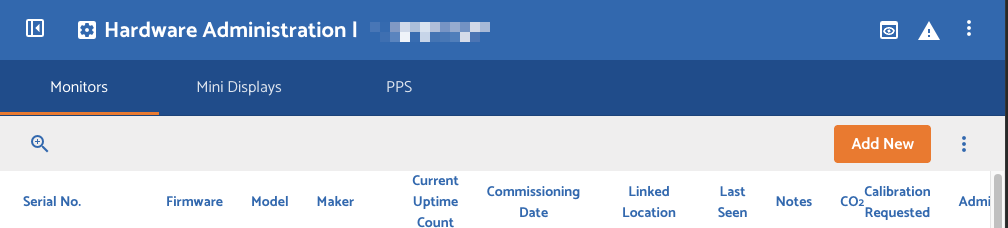
Please note that adding only the hardware entity is not enough.
You must also add a location entity and Link it to the hardware entity.
For detailed steps, please see the "Adding an additional monitor to an existing dashboard" sections on these guides:
4) Check for network restrictions
If everything above is correct, then this is almost always a network issue.
Some networks allow WiFi connection but block outbound traffic to the AirGradient server. This makes the device look “offline” even though it’s connected.
Your network must allow outbound HTTPS access to:
From a computer on the same network, run:
Expected result:
If you get timeouts:
- The network is blocking traffic
- You need to allow outbound HTTPS to
91.98.9.143
If you're on a managed or secured network, check if:
- MAC filtering is enabled
- “Allow only approved devices” setting is blocking connection
- Corporate / school network restrictions
For MAC filtering: The serial number is MAC address (without colons) in case you need to whitelist the device.
Example:
- SN:
abcdefghijkl - MAC:
ab:cd:ef:gh:ij:kl
Still not working?
At this point, please contact support and share:
- A photo of the serial number on the device
- Debug log:
https://www.airgradient.com/documentation/kb/kb-diy-online-debug
No comments to display
No comments to display