
How to Find the Firmware Version of Your AirGradient Monitor
There are several ways to check the firmware version of your AirGradient monitor.
Option 1: From the Dashboard
- Open the AirGradient Dashboard
- Go to Hardware
- All registered monitors are listed there
- The firmware version is shown for each monitor
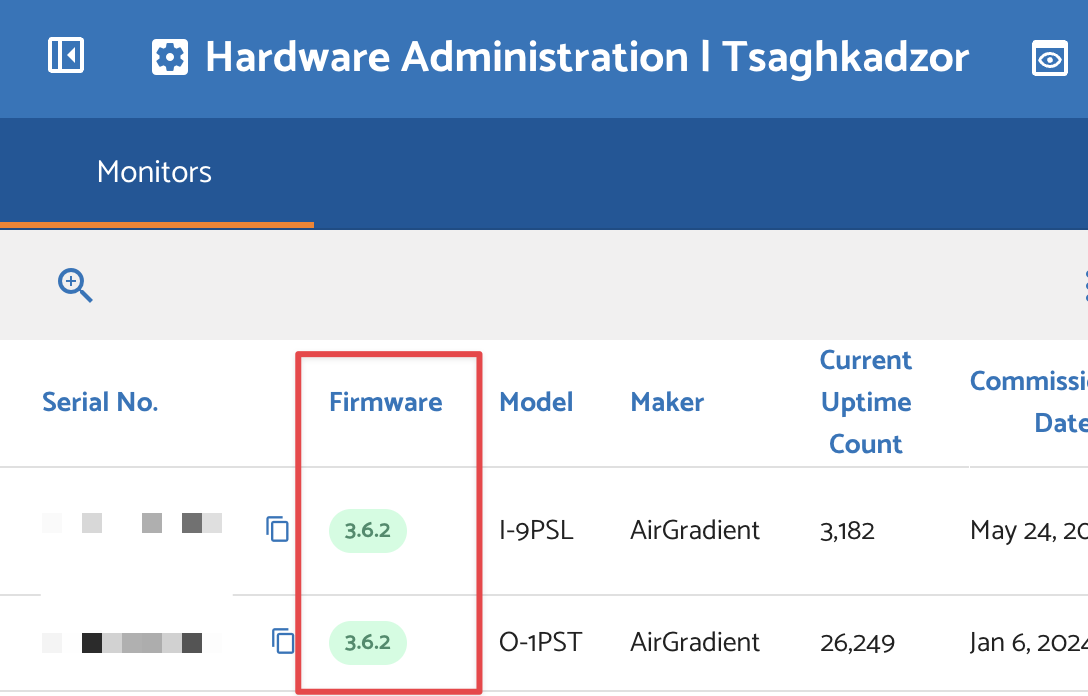
You can also find the firmware version this way:
- Go to Dashboard
- Find the monitor you want to check
- Click the Admin (gear) icon
- Look under Monitor Information
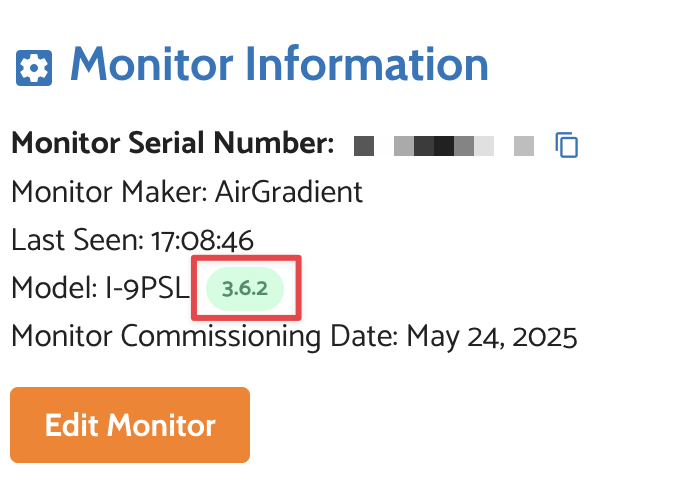
You’ll see the current firmware version there.
Option 2: Using the Local API (Advanced)
If your monitor is connected to your local network, you can also check the firmware version through the monitor’s built-in local API.
Use this address in your browser:
http://YOUR_SERIAL_NUMBER.local/measures/current
Replace the serial number with your own monitor’s serial number.
Example:
http://airgradient_ecda3b1eaaaf.local/measures/current
You’ll receive a JSON response like this:
{
  "pm01": 69.67,
  "pm02": 112.83,
  "pm10": 116.5,
  "pm01Standard": 104.83,
  "pm02Standard": 170,
  "pm10Standard": 175.33,
  "pm003Count": 5643,
  "pm005Count": 5151.17,
  "pm01Count": 1112,
  "pm02Count": 101.33,
  "pm50Count": 4.33,
  "pm10Count": 1.67,
  "pm02Compensated": 90.18,
  "atmp": 22.28,
  "atmpCompensated": 22.28,
  "rhum": 49.39,
  "rhumCompensated": 49.39,
  "rco2": 852,
  "tvocIndex": 226,
  "tvocRaw": 32009.5,
  "noxIndex": 2,
  "noxRaw": 15909.92,
  "boot": 3177,
  "bootCount": 3177,
  "wifi": -38,
  "ledMode": "co2",
  "serialno": "",
  "firmware": "3.6.2",
  "model": "I-9PSL"
}
The value shown under firmware is your installed version.
No comments to display
No comments to display