
Managing Users and Permissions in the AirGradient Dashboard
You can control who has access to your dashboard and what they can do by managing Users and Permissions.
Where to find it
You can access this section from:
- Or directly via:
https://app.airgradient.com/settings/permission
Important: This section is only visible to Administrators.
- If you created the dashboard account, you are an Administrator by default
- If you don’t see this menu, contact your dashboard admin for access
What you can do here
In the Users and Permissions section, you can:
- Add new users
- Edit existing users
- Remove users
- Control what each user can access
Adding a new user
- Click Add New
- Enter the user’s email address
- Select the permissions you want to assign, each permission type is explained below:
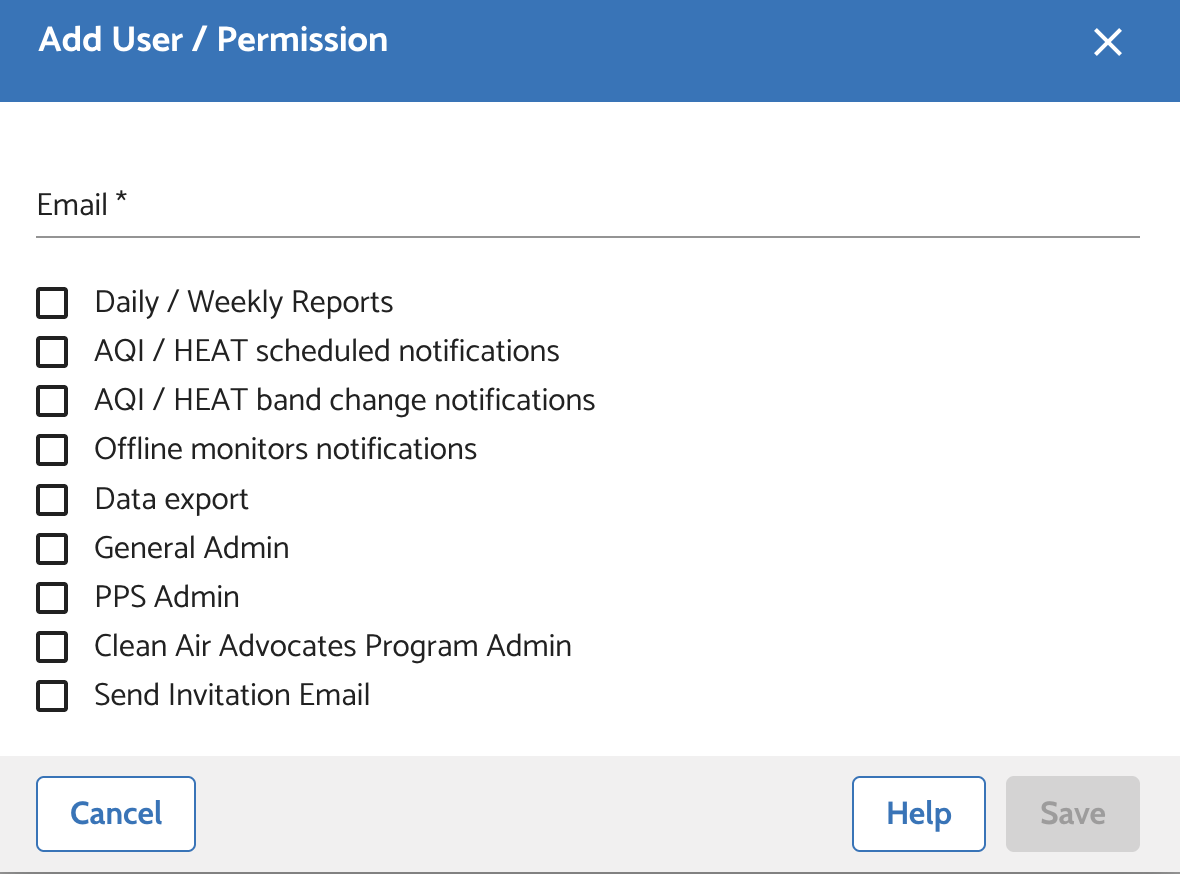
Daily / Weekly Reports
- User receives summary reports via email
- Includes an overview of air quality across all Locations
AQI / HEAT Scheduled Notifications
- Sends notifications about air quality at specific times
- Useful for planning activities like exercise
You can configure this here:
Alarms & Notifications → Scheduled Notifications
AQI / HEAT Band Change Notifications
- Sends alerts when air quality changes significantly (band change)
- Triggered only if the new level persists for more than 30 minutes
Configured under:
Alarms & Notifications → Band Change Notification Times
Offline Sensor Notification
- User receives an email if a monitor goes offline
- Triggered after ~30 minutes of no data
Data Export
- Grants access to the Data Export section
General Admin
- Full administrative access to the dashboard
- Can manage users, permissions, and system settings
- Should only be assigned to trusted account owners or managers
PPS Admin
Clean Air Advocates Program Admin
- Access to settings related to the Clean Air Advocates Program
Send Invitation Email
- Send an email invitation to new users
Finally, click Save.
Managing existing users
Using Actions > Edit, you can:
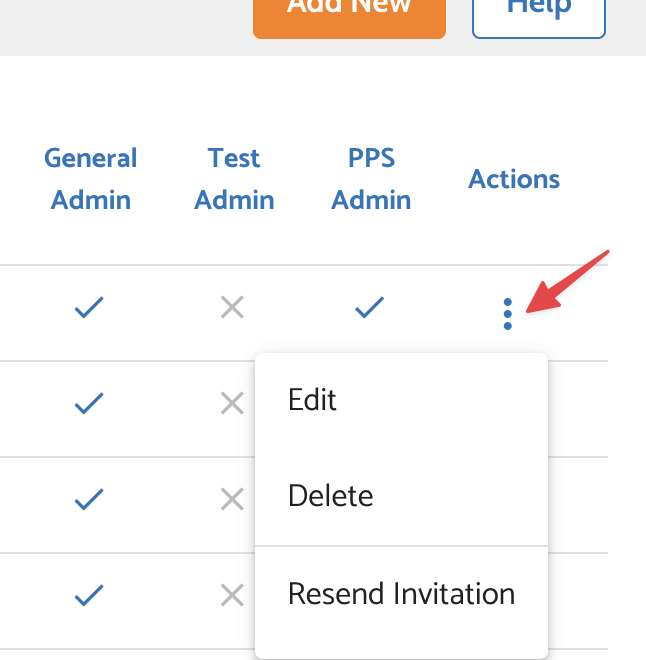
- Edit user permissions
- Delete users
- Resend an invitation email
No comments to display
No comments to display