
What are Places and Locations in the AirGradient Dashboard?
Understanding how Places and Locations work will help you organize your monitors correctly.
Places: Your main space
When you first create an account in the AirGradient Dashboard, you create a Place.
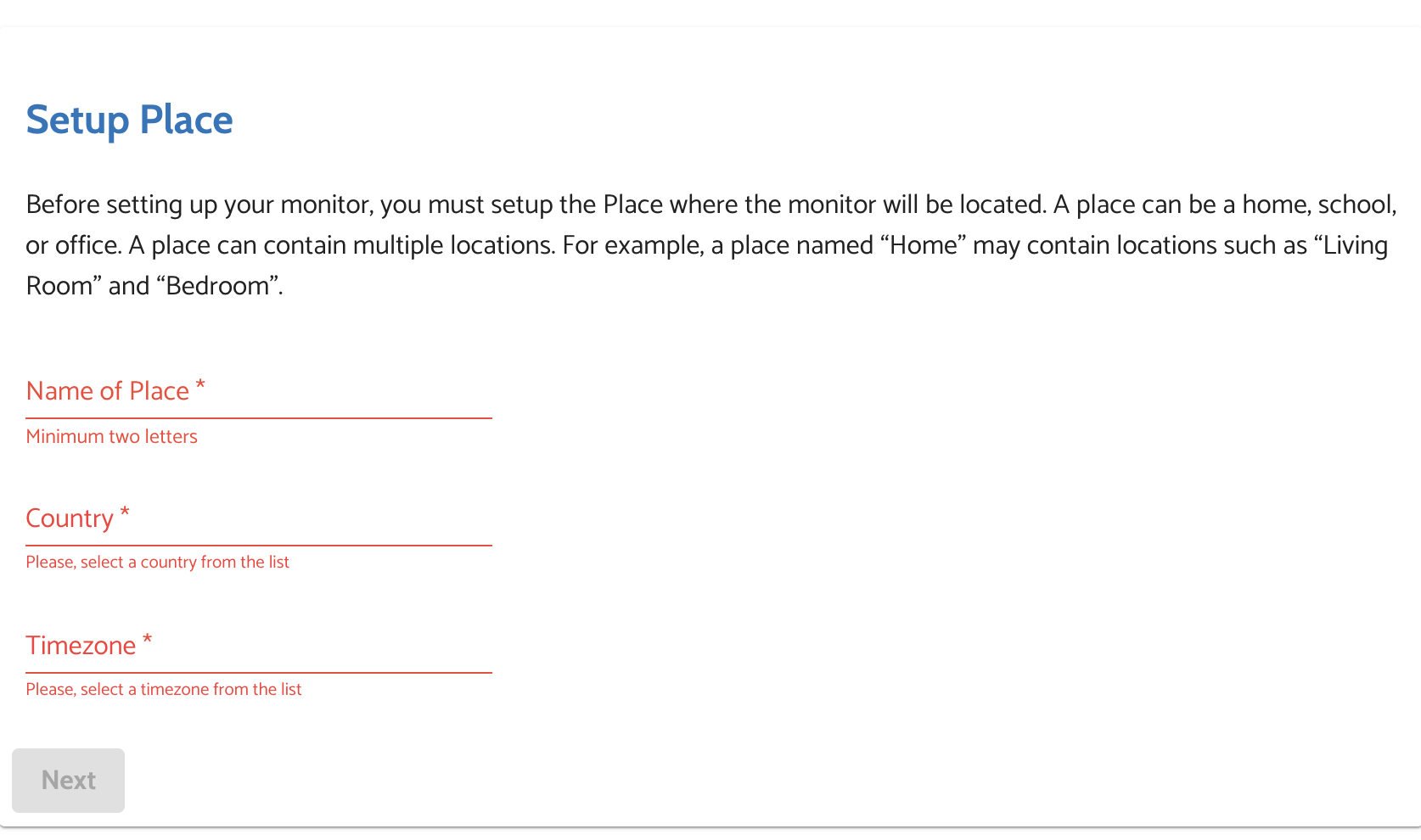
A Place represents a broader environment or project where your monitors are deployed.
For example, your home, an office building, a school campus or city-wide air quality project.
Think of a Place as a container that holds all your monitors.
Multiple Places
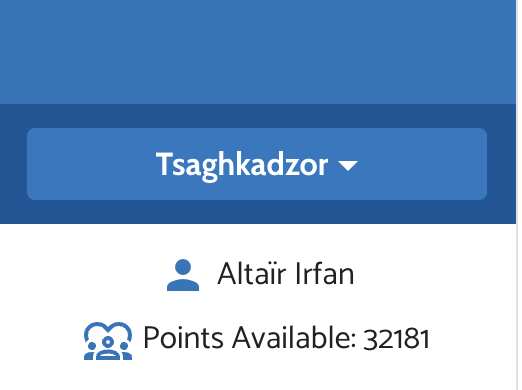
You can have multiple Places to manage different setups separately. You can switch between Place using the Place Selector drop-down:
For example, different households or separate research or deployment projects.
At the moment, additional Places cannot be created by the user. If you need one, just contact support with the needed Place Name, timezone and we’ll create it for you.
Locations: Where each monitor is installed
Inside a Place, each monitor is assigned a Location.
A Location describes the specific physical position of a monitor.
Examples:
- Living room
- Bedroom
- Office meeting room
- Rooftop
- Street corner
This helps you understand where each data point is coming from.
How monitors are structured
Each monitor in your dashboard is made up of:
- Hardware: the physical devices (Hardware in the sidebar menu)
- Location: where the devices records their data (Locations in the sidebar menu)
Together, they form a complete monitor setup inside your Place.
When you connect a monitor using the onboarding flow, the Hardware entity is created and a Location is created and aotu-assigned to that monitor.
The significance of this is that a single monitor can be linked to different Locations over time.
This is useful when you want to move a device to a new environment temporarily but keep datasets separate and clean.
Let’s say you move a monitor from your Living Room to your Bedroom.
Instead of using the same Location, you can:
- Go to Locations → Admin → Edit Locations
- Remove the monitor from the current Location (this unlinks it)
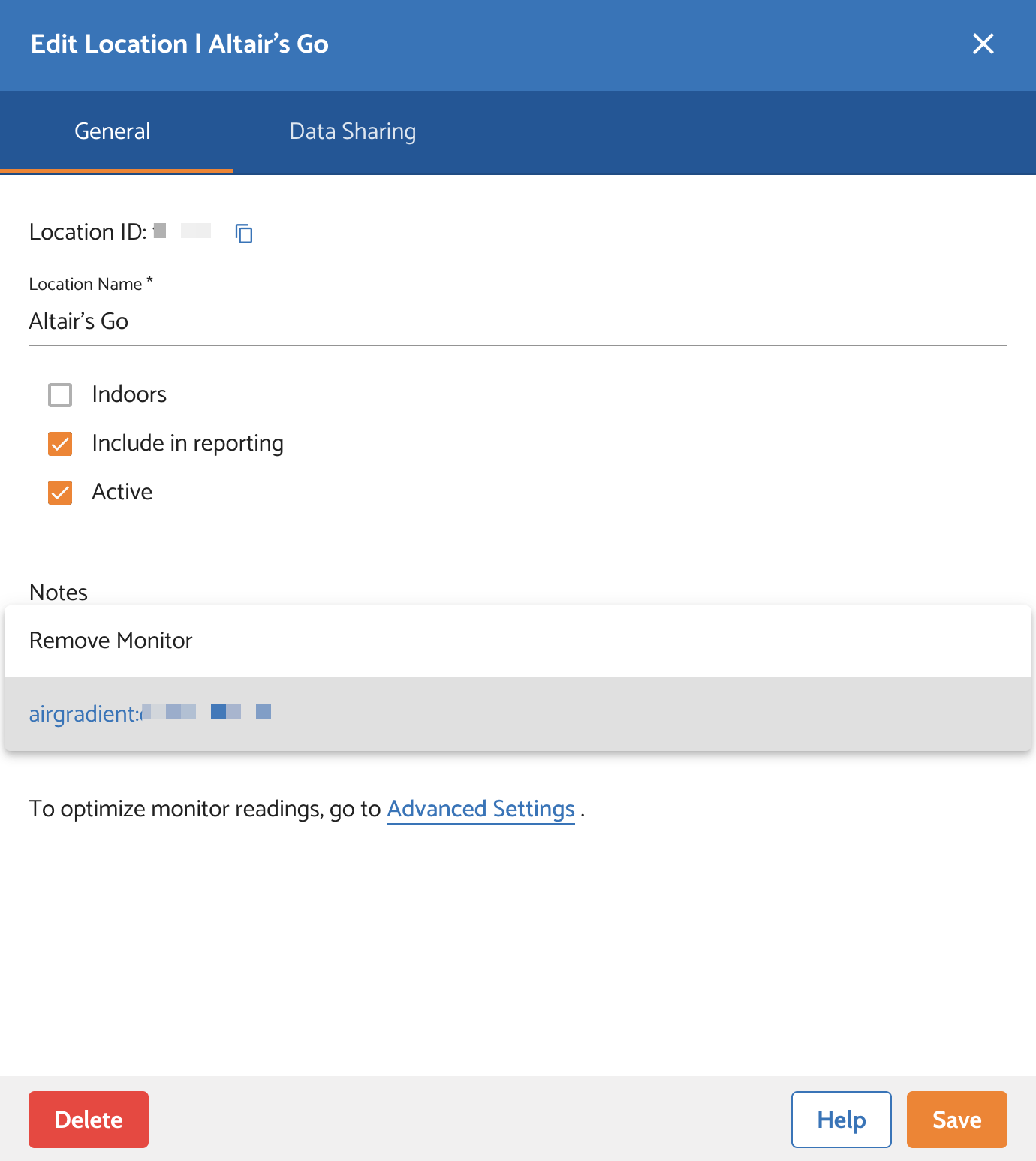
- Create a new Location (Locations > Add New)
- Link the same monitor to the new Location
What happens to the data?
- The old Location keeps its historical data
- The new Location starts a fresh dataset
- Only the Location currently linked to the monitor will show live data
No comments to display
No comments to display